Server
Logging and incident response: the basics for a small team
What to log, how long to keep it, central logs, alerts and what to do in the first hour of an incident. A practical guide to preserving evidence.
· 10 min read
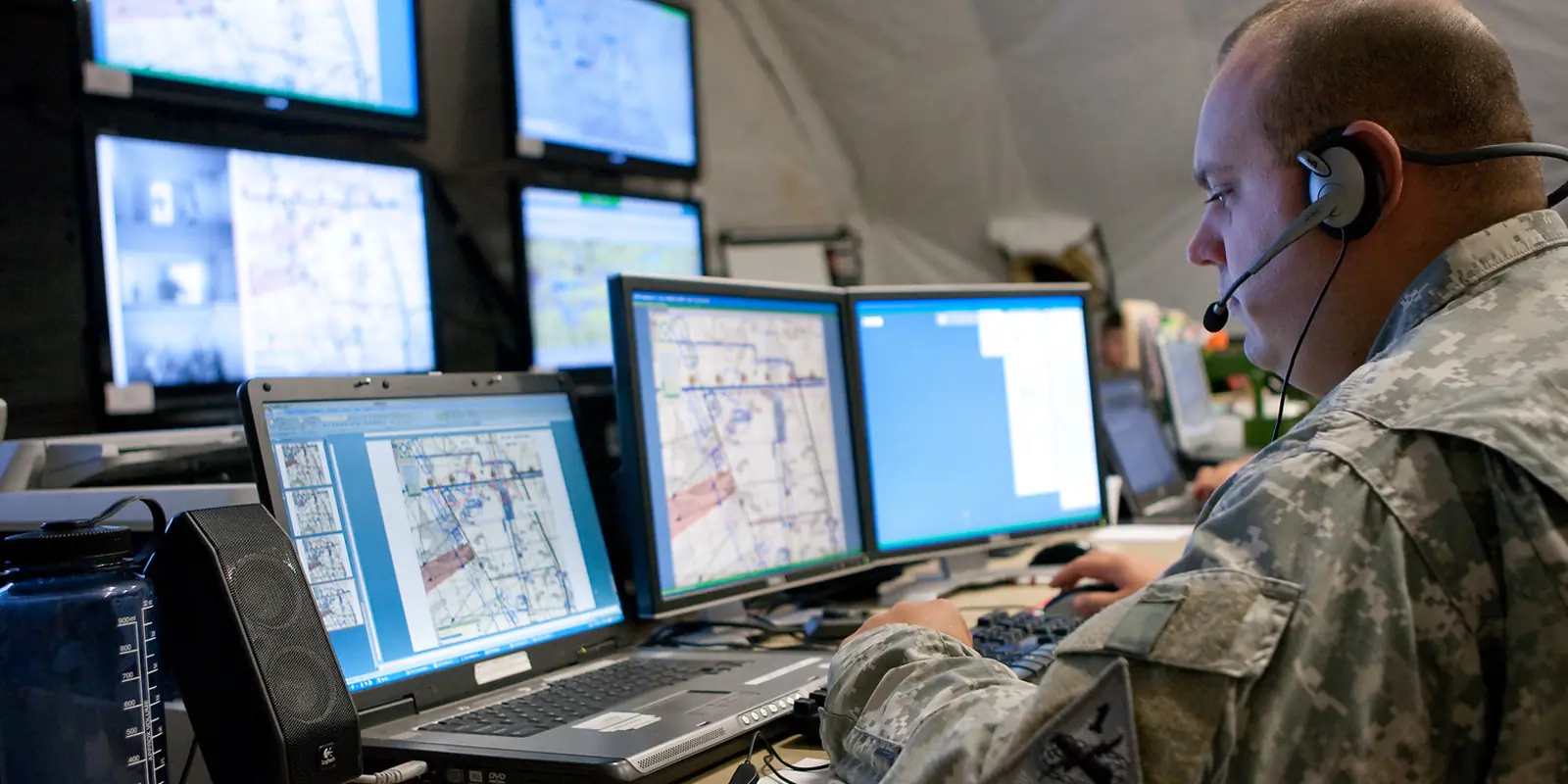
A small team has no separate security department: the developer, the server administrator and the incident responder are often the same people. So when something happens, most of the time goes into answering "what happened?". If there are no logs, they were kept only briefly, or the attacker deleted them, that question may never be answered.
In this article we look at what to log, how to store logs, when to send alerts and how to act in the first hour of an incident. The goal is not a large SOC, but a minimal routine a small team can actually follow.
What the problem is
The usual situation with logs looks like this:
- web server and application logs exist, but nobody reads them;
- important events (login, password change, role change) are not recorded at all;
- logs are rotated away after a few days;
- logs live only on the same server — if it is compromised, the attacker can edit or delete them;
- conversely, passwords, tokens and personal data end up in the logs.
The last case is dangerous too: the log file itself becomes a source of data leakage.
Why it matters for the expertise
The OWASP Top 10 (2021) has a dedicated category: A09 "Security Logging and Monitoring Failures". OWASP ASVS also contains requirements for logging security events, keeping secrets out of logs and protecting logs. In the expertise this shows up from two sides:
- Information disclosure. Publicly reachable
storage/logs/laravel.log,error_logordebug.logfiles and stack traces on error pages are all recorded as findings. More on this: debug mode and information disclosure. - No monitoring. If password guessing and unauthorised access attempts are neither detected nor recorded, an attack goes unnoticed.
Principle: the log is the only witness that answers questions after an incident. It must be complete, protected and contain no secrets.
What to log
At the application level
Every entry should include at least: time (UTC or with an explicit time zone), user identifier, IP address, event type, outcome (success or failure) and a request identifier.
Events that should be logged:
- successful and failed logins, logouts, lockouts;
- changes of password, email or phone number, password resets;
- changes of roles and permissions, a new administrator being added;
- denied requests (403) — especially attempts to access other users' objects;
- important business operations: payments, document signing, data exports;
- repeated validation and CSRF errors.
What not to log
Passwords, tokens, session identifiers, full card numbers, one-time codes, full personal data. Logging entire request bodies often pulls such data into the log.
At the server level
- web server access and error logs (nginx
access.log,error.log); - PHP-FPM and application errors;
- SSH logins (
/var/log/auth.logorjournalctl -u ssh); - control panel logins;
- connections rejected by the firewall;
- package installations and system changes.
Examples for Laravel and Node
In Laravel it is convenient to create a separate channel for security events (config/logging.php):
'security' => [
    'driver' => 'daily',
    'path' => storage_path('logs/security.log'),
    'level' => 'info',
    'days' => 90,
],
Listening to login events:
Event::listen(\Illuminate\Auth\Events\Failed::class, function ($e) {
    Log::channel('security')->warning('login.failed', [
        'login' => $e->credentials['email'] ?? null,
        'ip' => request()->ip(),
        'ua' => substr((string) request()->userAgent(), 0, 200),
    ]);
});
Note that only the login is written, not the whole credentials array — the password never reaches the log.
A Node.js (pino) example that automatically redacts sensitive fields:
const logger = require('pino')({
  redact: ['req.headers.authorization', 'req.headers.cookie', '*.password', '*.token'],
});
logger.info({ userId: user.id, ip: req.ip, event: 'login.success' });
Structured (JSON) logs make later searching and analysis much easier.
Check it yourself
Make sure logs are not reachable from outside (only on your own site):
for p in storage/logs/laravel.log error_log debug.log wp-content/debug.log logs/error.log; do
  printf "%s " "$p"; curl -s -o /dev/null -w "%{http_code}\n" "https://example.uz/$p"
done
Search the logs for secrets:
grep -riE "password|passwd|authorization: bearer|api_key|secret" /var/www/app/storage/logs | head
Check how long logs are kept: the settings in /etc/logrotate.d/ and journalctl --disk-usage. And a simple question: could you find out within five minutes who logged into the admin panel yesterday at 03:00?
Retention and protection
Retention depends on your organisation's requirements, but a practical approach for a small team is: at least several weeks for quick searching, and several months in an archive. Some sectors may have regulatory requirements — confirm them with your lawyer.
A logrotate example for nginx logs:
/var/log/nginx/*.log {
    daily
    rotate 90
    compress
    delaycompress
    missingok
    notifempty
    create 0640 www-data adm
    sharedscripts
    postrotate
        [ -f /run/nginx.pid ] && kill -USR1 $(cat /run/nginx.pid)
    endscript
}
Log files should be readable only by the users who need them (0640) and live outside the web root.
Centralising logs
If logs exist only on the server itself, whoever compromises it can erase their tracks. So logs should be shipped elsewhere in real time. Options for a small team:
- forwarding to a separate log server with rsyslog:
# /etc/rsyslog.d/90-remote.conf
*.* @@logs.internal.example:514
- lightweight tools such as Grafana Loki + Promtail or Vector;
- your cloud provider's logging service.
Important: the main server should only be able to write to the log server, not delete from it. Synchronise server time with NTP (timedatectl, chrony) — otherwise events from different sources cannot be correlated.
Alerts
Alerting on everything is the same as alerting on nothing: the team quickly stops paying attention. Start with a few precise rules:
- many failed logins from one IP or against one account in a short time;
- a new administrator being added or a role being changed;
- an admin panel login from a new country or an unknown IP;
- a sharp increase in 5xx errors;
- a new
.phpfile appearing in the web root (especially insideuploads); - a failed backup run.
Alerts should go to one channel (a Telegram group, email), and everyone should know who is on duty. For SSH, fail2ban automatically blocks repeated attempts.
The first hour of an incident
You have found a sign of an incident: an unknown administrator, a strange file, unexpected requests in the logs. The most common mistake is to hastily shut the server down or delete files — the evidence is lost. A rough order:
- Record. Who saw what and when — write it down with timestamps. This becomes the basis of the report.
- Preserve evidence. Copy logs, suspicious files and configuration to another location and record their hashes:
tar -czf /root/ir/evidence_$(date +%F_%H%M).tar.gz /var/log/nginx /var/www/app/storage/logs
sha256sum /root/ir/evidence_*.tar.gz > /root/ir/evidence.sha256
ps auxf > /root/ir/processes.txt
ss -tunap > /root/ir/connections.txt
find /var/www -type f -mtime -7 -printf "%TY-%Tm-%Td %TH:%TM %p\n" | sort > /root/ir/recent_files.txt
- Contain, but do not destroy. Block the suspicious account, close the backdoor path at the web server level and, if needed, put the site into maintenance mode. Do not delete suspicious files — move them to quarantine.
- Rotate keys. Database password, API tokens and application secrets, administrator passwords — change them from a clean environment.
- Find the entry point. An outdated plugin, a vulnerable library, a leaked password? Until the entry point is closed, any cleanup is temporary.
- Notify. Management, and where necessary customers and the competent authorities. For government systems and serious incidents, notifying the national cybersecurity centre may be required.
You can see a real example in the article anatomy of a WordPress backdoor: evidence was preserved first, then malicious files were quarantined and core files were compared against the official checksums.
Short checklist
- Logins, password changes, role changes and 403 events are logged
- Logs contain no passwords, tokens or full personal data
- Log files live outside the web root and are not reachable from outside
- A retention period is defined and
logrotateis configured - Logs are shipped elsewhere in real time
- Server time is synchronised with NTP
- There are a few precise alert rules and someone on duty
- An incident response procedure is written down and evidence collection commands are ready
Summary
Good logging does not prevent an incident, but it lets you notice it quickly and respond correctly. In our process, the Claude AI agent reviews logging points in the application code, the log configuration and any secrets leaking into logs, and the expert sets up retention, centralisation and alert rules.
If you want to check whether your logging and incident response are ready for the expertise, request a security scan. We will help you close the gaps before the official check.